

How to download from Tubidy on your phone
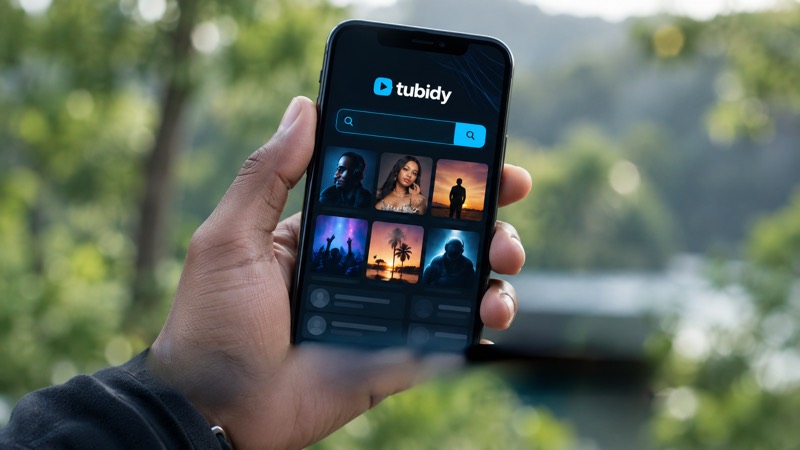
- Open Tubidy in Chrome on Android or Safari on iPhone.
- Search for the artist and song title.
- Open the right result and tap Download.
- Choose MP3 audio, MP4 audio or MP4 video and tap Download.
Android usually saves the file to Downloads. iPhone saves it to Downloads in the Files app.
On this page11 sections
- How to download from Tubidy on your phone
- Which Phones Work with Tubidy
- Use Tubidy on Android
- Use Tubidy on iPhone
- Find Your Downloaded Files
- Add Tubidy to Your Home Screen
- Choose MP3 or MP4 on a Phone
- Save Storage and Mobile Data
- Fix Common Mobile Problems
- Pros and Cons of Using Tubidy on a Phone
- Questions About Tubidy on Mobile
Search Tubidy for songs, artists or music videos
Which Phones Work with Tubidy
Tubidy is a website, so it runs in your phone's browser rather than in an app. Searching and choosing a format do not need an account.
- Android phones and tablets: Chrome, Samsung Internet or another current browser.
- iPhone and iPad: Safari, which saves downloads to the Files app.
- Keep your browser up to date. Older browsers can have trouble with downloads.
Use Tubidy on Android
This is how to download music from Tubidy on Android, using Chrome or another current browser.
Step 1: Search for the song
Open Tubidy in Chrome and type the artist and song title in the search box. The artist plus the title gives the most accurate results.
Step 2: Open the right result
Compare the titles and durations. A live session or DJ mix is usually much longer than the single.
Step 3: Tap Download under the title
Tubidy prepares the formats for that song, which can take a few seconds. Use the Download button under the song title, not buttons inside adverts.
Step 4: Choose a format
Tap Download next to MP3 audio, MP4 audio or MP4 video. Chrome shows the progress in the notification bar and saves the file to Downloads.
The first download in a browser can ask for storage permission, especially on older Android versions. Allow it once for that browser.
Use Tubidy on iPhone
This is how to download music on Tubidy on iPhone and iPad, using Safari.
Step 1: Search in Safari
Open Tubidy in Safari, search for the artist and song title and open the right result.
Step 2: Tap Download and choose a format
When the format table appears, tap Download next to the format you want. If Safari asks whether to download the file, confirm it.
Step 3: Open the file in the Files app
Tap the download icon in Safari's address bar to see the file, or open the Files app and go to Downloads. Tap the file to play it.
Files saved in the Files app play there directly. To add them to the Music app's library, you need to sync them from a computer. Some third-party players can also open files from the Files app.
Find Your Downloaded Files
| Device | Where to look | Tip |
|---|---|---|
| Android | The Downloads folder, in the browser's download list or the Files app | Most music players add new tracks from Downloads; some need a refresh |
| iPhone and iPad | Files app, Downloads (unless you changed Safari's download location) | Move songs into a folder of your choice to keep them organised |
| Computer | The Downloads folder | Copy files to your phone with a cable or a cloud folder |
Your browser settings decide the exact location. The download guide shows every step with screenshots.
Add Tubidy to Your Home Screen
You do not need an app: you can add the Tubidy website to your home screen so it opens like one. The shortcut simply opens the site in your browser.
- Android (Chrome): open Tubidy, tap the menu (three dots) and choose Add to Home screen.
- iPhone and iPad (Safari): open Tubidy, tap the Share button and choose Add to Home Screen.
- Give the shortcut a name and confirm. It appears next to your apps.
Only add the site you normally use. Check the address bar first, because many sites use the Tubidy name.
Choose MP3 or MP4 on a Phone
MP3 audio is sound only and plays in almost every music player. MP4 video contains the picture and the sound. MP4 audio is sound only in an MP4 file. MP4 video is usually much larger than the MP3 audio of the same song.
If you only want to listen, MP3 audio is usually the practical choice. The format comparison explains the differences.
Save Storage and Mobile Data
- Choose MP3 audio when you only want to listen.
- Save music videos and long mixes for Wi-Fi.
- Play saved files offline: listening again uses no data.
- Clear out songs you no longer play from Downloads from time to time.
The data-saving guide explains how much data a song uses and how to keep music for offline listening.
Fix Common Mobile Problems
| Problem | What to do |
|---|---|
| A new tab opens with another website | Close it and go back to the song page. Use the Download button under the song title. |
| The browser asks for storage permission | Allow it once for that browser; this is common on older Android versions. |
| I can't find the downloaded file | Open the browser's download list, then Downloads (Android) or the Files app (iPhone). |
| The download stops on mobile data | Check your data balance and free storage, then try again on Wi-Fi, especially for videos. |
For more fixes, see the Tubidy Not Working guide.
Pros and Cons of Using Tubidy on a Phone
| What to expect | |
|---|---|
| Pros | Free to use, works in the browser without an app or account, MP3 and MP4 options, files stay on your phone for offline listening |
| Cons | Adverts and new tabs can open during downloads, each format comes in one quality, files stay in Downloads until you move them, and on iPhone adding songs to the Music library needs a computer |
Questions About Tubidy on Mobile
Do I need the Tubidy app to download on my phone?
No. Tubidy works in your phone's browser, so there is nothing to install to search or download.
Is Tubidy safe to use on my phone?
Use the Download button under the song title and in the format table, close any new tab that opens with another website, and be careful with install prompts that appear inside adverts.
How much storage do Tubidy downloads need?
It depends on the song and the format. A four-minute MP3 at 128 kbps is roughly 4 MB, and the music video is usually much larger.
Can I choose HD video quality?
In our checks MP4 video came in one quality, and the format table did not offer a resolution menu.
Why can't I see my song in the Music app on iPhone?
Safari saves downloads to the Files app. You can play the file there. Adding it to the Music app's library requires syncing from a computer.