

How to use Tubidy safely
- Check the address bar before you search.
- Use only the Download button under the song title and in the format table.
- Save files that end in .mp3 or .mp4, never .exe or .apk.
- Block notification requests you did not ask for.
No website can promise that every advert or link is harmless, so these checks matter on any free download site.
On this page6 sections
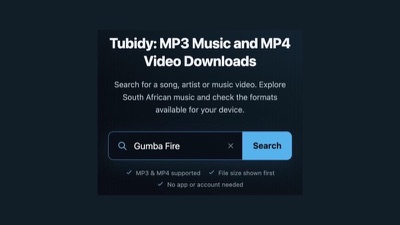
Search Tubidy for songs, artists or music videos
Recognise the Correct Download
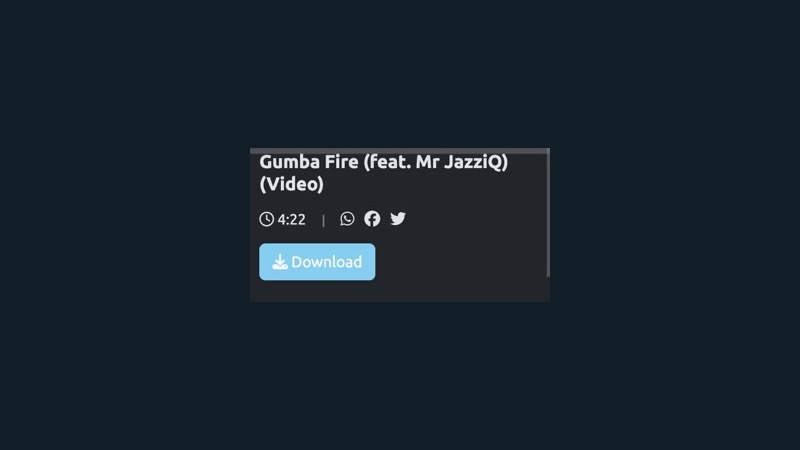
Tubidy is supported by advertising, and adverts can include large, colourful buttons. The real Download button sits under the song title, next to the duration. After you tap it, the format table shows Download buttons next to MP3 audio, MP4 audio and MP4 video.
If a tap opens a new tab with another website, close it and go back to the song page.
Check File Types
- Music files end in .mp3 (MP3 audio) or .mp4 (MP4 audio and video).
- Do not open files that end in .exe, .apk, .bat or .scr: they are programs, not music.
- A secure (https) address protects the connection; it does not prove that a file is harmless.
- Be careful with prompts to install an app or a player to open a song. You do not need one to play MP3 or MP4 files.
If a download does not look like a music file, delete it without opening it.
Manage Browser Notifications
Some sites and adverts ask to send notifications. Here is how to stop Tubidy notifications, or any site's notifications, if you allowed them by mistake:
Android (Chrome)
- Open Chrome, tap the menu (three dots) and go to Settings.
- Tap Site settings, then Notifications.
- Find the site and set it to Block, or turn notifications off for all sites.
iPhone and iPad
- Website notifications on iPhone only come from sites added to the home screen.
- Open the Settings app, go to Notifications and turn off the site's notifications.
- You can also remove the home screen shortcut.
Computer
- In Chrome or Edge, open Settings, then Privacy and security, then Site settings, then Notifications.
- In Safari on a Mac, open Settings, then Websites, then Notifications.
- Remove or block the sites you do not want.
Report a Problem
If you see a misleading button or a download that looks wrong, tell us through the Contact page. For download errors, the troubleshooting guide lists the fixes, the app guide explains why you do not need to install anything, and the copyright guide covers what you may download and share.
Safety Questions
Is Tubidy safe to use?
Use the Download button under the song title, save only .mp3 or .mp4 files and close any tab that opens another website. No free download site can guarantee that every advert is harmless.
Does Tubidy have viruses?
MP3 and MP4 files are media files, not programs. Problems usually come from adverts or files with the wrong type, such as .exe or .apk, so do not open those.
How do I stop Tubidy notifications?
Block the site in your browser's notification settings: on Android in Chrome under Site settings, then Notifications; on a computer in the browser's site settings.