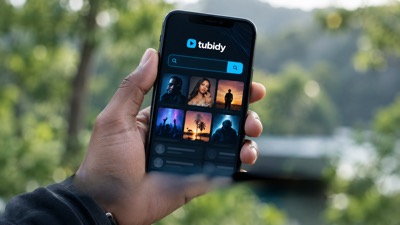



How to download music from Tubidy
- Search for the artist and song title.
- Open the result with the right title and duration.
- Tap Download and wait for the format table.
- Choose MP3 audio, MP4 audio or MP4 video and tap Download.
Your browser saves the file, usually in its Downloads folder. No app or account is needed.
On this page10 sections
Search Tubidy for songs, artists or music videos
What you need before you start
- A phone, tablet or computer with a current browser, such as Chrome, Safari, Edge or Firefox.
- An internet connection. Check your data bundle before downloading videos, as they are larger than audio files.
- Some free storage space. A four-minute MP3 is often around 4 MB; videos need more.
- No app and no account. Searching and choosing a format both work in the browser without signing in.
Search by Song or Artist
Step 1: Type the artist and song title
Open Tubidy and type in the search box at the top of the page. The artist name plus the song title gives the most accurate results. If you only know part of the title, start with the artist and pick the song from the list.
Keep the query short. Words such as "mp3", "download" or the year rarely help, and long featured-artist lists can hide the result you want. The search tips in the troubleshooting guide cover more cases.
Preview the Correct Result
Step 2: Compare the results and open the right one
Each result shows a thumbnail, the title and the duration. Check both before you tap. Words such as Official Audio, Visualiser, Live or Remix tell you which version it is, and a DJ mix or live session is usually much longer than the single.
Not sure which one is right? Every option in the format table has a Play button, so you can listen before you save the file.
Choose an Available Format
Step 3: Tap Download on the song page
The song page shows the title, the duration and a blue Download button. Tap it once. Tubidy then prepares the formats for that song, which can take a few seconds.
Step 4: Pick MP3 audio, MP4 audio or MP4 video
The available formats appear on the song page. Tap Download next to the one you want. MP3 audio is the usual choice for music; MP4 video is the only option that includes the picture.
In our checks each format came in one quality, so there is no separate bitrate or resolution menu. The format comparison explains the differences in more detail.
Find Your Download
Your browser decides where the file goes. Choose your device:
Android
- When the download finishes, tap the notification or open the browser menu and choose Downloads.
- You can also open the Files app and go to Downloads.
- Music players usually add new tracks from this folder automatically; some need a refresh first.
The first download in a browser can ask for storage permission, especially on older Android versions. Allow it once.
iPhone and iPad
- In Safari, tap the download icon in the address bar to see recent files.
- Or open the Files app and go to Downloads.
- Tap the file to play it, or move it to another folder or a cloud drive.
If the file is not in Downloads, check the Downloads setting for Safari in the Settings app to see which location is selected.
Computer
- Files are saved to the Downloads folder by default.
- Open the file in any media player.
- To move it to your phone, use a USB cable or a cloud folder.
Your browser's download list (Ctrl+J in Chrome or Edge on Windows, Option+Cmd+L in Safari on a Mac) shows every recent file.
Once the file is saved, you can play it offline without downloading it again. The mobile download guide covers Android and iPhone in more detail.
Save Mobile Data
On a prepaid bundle, the format you choose makes the biggest difference. A music video usually takes far more data than the MP3 of the same song, and long mixes or live sessions are much larger than a single.
- Choose MP3 audio when you only want to listen.
- Save music videos for Wi-Fi.
- Check your data balance and free storage before you download.
- Keep saved songs on your device: playing them again uses no data.
If the Download Fails
Most failed downloads have a simple cause. Find your symptom:
| Problem | What to do |
|---|---|
| A new tab opens with another website | Close the tab and go back to the song page. Use the Download button under the song title, not buttons inside adverts. |
| The format table does not appear | Wait a few seconds, then reload the page. If it still does not load, open another result for the same song. |
| Nothing happens when I tap Download | Check your browser's download list or notification first. Make sure downloads are allowed for this site in your browser settings and that your device has free storage, then tap Download again. |
| The download stops or fails | Check your connection and free storage space, then try again, ideally on Wi-Fi for videos. |
| I can't find the file | Open your browser's download list, then the Downloads folder (see Find Your Download above). |
Still stuck? The Tubidy Not Working guide covers search, download and access problems, and you can contact the site to report a persistent issue.
Stay Safe While Downloading
- Check the address bar before you search. Many sites use the Tubidy name or a close misspelling such as "tubidi".
- Use only the Download buttons on the song page and in the format table. Large, colourful buttons inside adverts lead elsewhere.
- You do not need to install anything to search or download. Be careful with install or update prompts inside adverts.
- Copyright rules differ between countries. Keep downloads for personal listening and read the Terms before using content in other ways.
Questions About Downloading from Tubidy
How does Tubidy work?
You search for a song or artist, open a result and tap Download. Tubidy prepares the available formats; you choose one and your browser saves the file.
Is it free to download music from Tubidy?
Yes. Searching and downloading do not cost anything and do not need an account. The site is supported by advertising, so an advert or a new tab can appear during a download.
How do you download songs on Tubidy on a phone?
Open Tubidy in your phone's browser, search for the song, open the right result and tap Download. Then choose MP3 audio, MP4 audio or MP4 video in the format table. No app is needed on Android or iPhone.
Should I choose MP3 or MP4?
Choose MP3 audio if you only want to listen; it is usually a small file and plays in almost every music player. Choose MP4 video if you want the music video. MP4 audio is sound only in an MP4 file and is usually about the same size as the MP3.
Can I choose the audio quality?
In our checks each format came in one quality, so there was no bitrate menu.
Why can't I find the file after downloading?
Check your browser's download list first. On Android, look in Downloads or the Files app; on iPhone, open Files and go to Downloads; on a computer, check the Downloads folder.